PadBrain · guide · 3/6
On stage
The Live screen has only big buttons. PLAY when the singer looks at you, a section chip when the leader calls “one more chorus”, SYNC when the band drifts. Then the buttons for when something goes wrong.
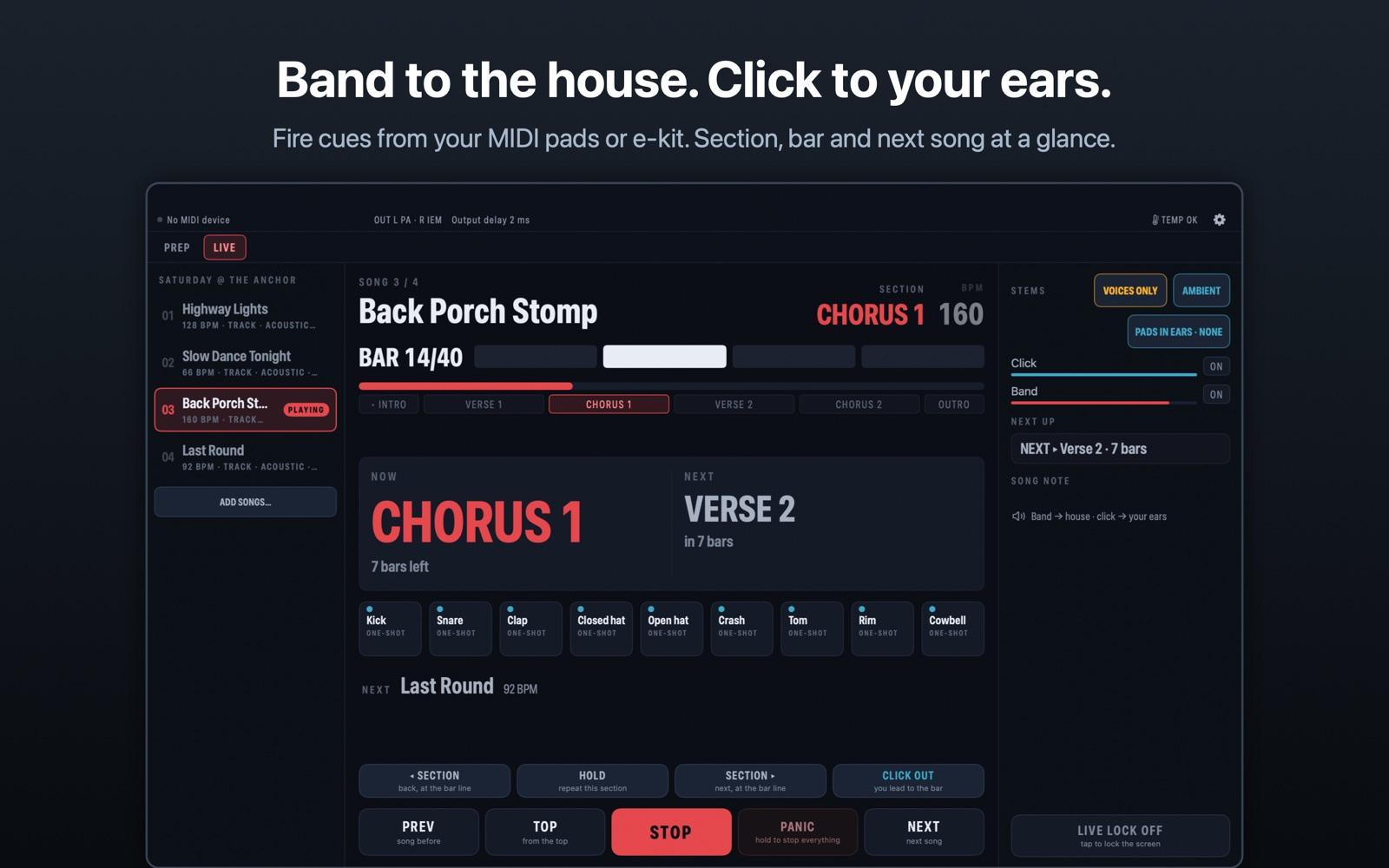
The steps below are the same words as the app’s own guide. In the app: the gear (Rig) → “How to use PadBrain”.
Starting a song
- 1When the singer looks at you, press PLAY, or step on the pedal.
- 2The count‑in click is in your ears only; the backing track comes in on one. The other players cannot hear the count‑in — count them in with your sticks.
- 3The next song's name sits above the transport the whole time, so you always know what is coming.
During a song
- 1Hit the pads for the sounds. The pad lights when it plays.
- 2Stay on Live while a song plays: changing tabs stops the song, and the app asks first. To see the whole set, tap the song count at the top.
- 3SECTION and BAR show where you are on the app's grid. With the song's BPM and its beat one set right they are exact — on a tempo map too, where the BPM shown follows the music.
- 4The leader calls a section: tap its name chip — Chorus, Bridge — and the song goes there on the next bar line. The chip of the section you are in starts it again from its top: “one more chorus”. Two sections with the same name are numbered: Chorus 1, Chorus 2.
- 5HOLD repeats the section you are in until you press it again.
- 6The band drifts off the click — every drummer's nightmare. On a song without a backing track, tap SYNC on the band's ONE: the click and the bar count move to that beat at once. Wrong tap? UNDO within ten seconds. With a backing track the same button is CLICK OUT: the click stops, you lead the band to the bar line, and CLICK BACK brings the click in exactly there.
- 7Stopped: tap the BPM number to hear one bar of the next song's click in your ears before you count it in — only with L PA · R IEM, so the room hears nothing. Settings can do this by itself whenever a song is chosen.
- 8“Band out, voices only”: VOICES ONLY fades the band and keeps your click and pads. Tap again and the band comes back.
- 9Beside the section name, NEXT ▸ shows what comes next and how many bars are left; in the last bar it counts the beats. Missed the spoken cue? Look there.
- 10Between songs, or under a prayer or a talk: AMBIENT fades in a soft held pad in the song's key, to the house speakers. Tap again to fade it out; hold it to pick the key or the level. PANIC silences it at once.
- 11Rehearsing one part: PLAY, then SECTION ▸ to it, then HOLD. You can't start from a section while stopped.
- 12Skip ahead or back: SECTION ▸ or ◂ SECTION. Press it anywhere in the bar; the jump lands on the next bar line.
- 13Home pressed, screen locked, an alert swiped away: the band and the click go on. A call, an alarm or another app's sound stops them — the song stops too, and you come back in with PLAY or a section. A page‑turner pedal only reaches the app while it is on screen.
Between songs
- 1A song set to STOP ends, and the next song is already loaded. Press PLAY when ready.
- 2A song set to INTO NEXT does not stop: the next one starts on the beat, with its own kit on the pads.
- 3Need a different song? PREV and NEXT move through the set. The pads change with the song.
When it goes wrong
- 1Lost? TOP starts the song again from the top, on the bar.
- 2Everything must stop now: hold PANIC. All sound stops at once.
- 3Before the show, tap LIVE LOCK. Nothing can be edited or moved by accident; while a song plays, PREV and TOP need a hold. To unlock, hold it.
- 4A cable came out and everything went quiet: plug it back, or tap SEND SOUND AGAIN on the Live screen.
Live
The stage screen. Big buttons, nothing to set.
- Song count (top)
- Tap it for the whole set. While a song plays the list is view only; stopped, tap a song to move there.
- Song, SECTION, BPM, BAR
- Which song, which part of it, how fast, which bar of the section. The four cells blink on the beat.
- Now · Next
- On a wide screen, the board in the middle: the section you are in and the bars left in it, and the section coming next with the bars until it — the beats, in the last bar. COUNT IN shows during the count-in. The nine pads sit in one row under it.
- Pads
- Nine sounds for this song. Tap on screen or hit the real pad. A lit pad is playing.
- ◂ SECTION · SECTION ▸
- Jump to the previous or next section. The jump waits for the bar line.
- HOLD
- Repeat this section until pressed again. For 'one more time'.
- SYNC · CLICK OUT · CLICK BACK
- Click-only song: tap on the band's ONE and the click moves to it; UNDO for ten seconds. With a backing track: CLICK OUT drops the click until the next bar line, and CLICK BACK brings it right back on it.
- BPM (stopped)
- Tap it for one bar of the click in your ears, with the ears on their own side.
- Section chips · VOICES ONLY
- The song's sections by name: tap one to go there on the next bar line; the one you are in starts again. Two with the same name are numbered. VOICES ONLY fades the band and keeps the click.
- NEXT ▸ beside the section
- The section coming next and the bars left — the beats, in the last bar. A move you asked for shows as → and its name.
- AMBIENT
- A soft pad in the song's key for between songs. Tap: fade in or out. Hold: key, level, follow each song's key.
- NEXT line
- The song after this one. SEGUE means it will start by itself when this one ends.
- PREV · NEXT
- The song before or after, from its top. While playing, the new one starts at once.
- TOP
- This song from the top. While playing it lands on the bar line.
- PLAY · STOP
- Start with the count-in, or stop.
- PANIC
- Hold it: everything stops at once. Tap it and nothing happens, on purpose.
- LIVE LOCK
- Tap to lock, hold to unlock. Locked: nothing can be edited, added or reordered; while playing, PREV and TOP need a hold. Pads, pedal, PLAY and NEXT still work. It stays on if the app restarts.