PadBrain · guide · 4/6
One-click prep — iPhone, iPad, Mac
The fastest way to a set. Paste the list your leader sent and add the tracks (tracks or stems, MIDI, chord charts), and you get a set with every song’s tempo, meter, sections and beat one. On the Mac and, from 1.0.13, on the iPhone and iPad too. Reducing the drums in a mixed file and sending the set to your iPhone stay on the Mac. If the original is too fast, rehearse it slower with the rehearsal tempo.
The steps below are the same words as the app’s own guide. In the app: the gear (Rig) → “How to use PadBrain”.
Preparing the gig on the Mac
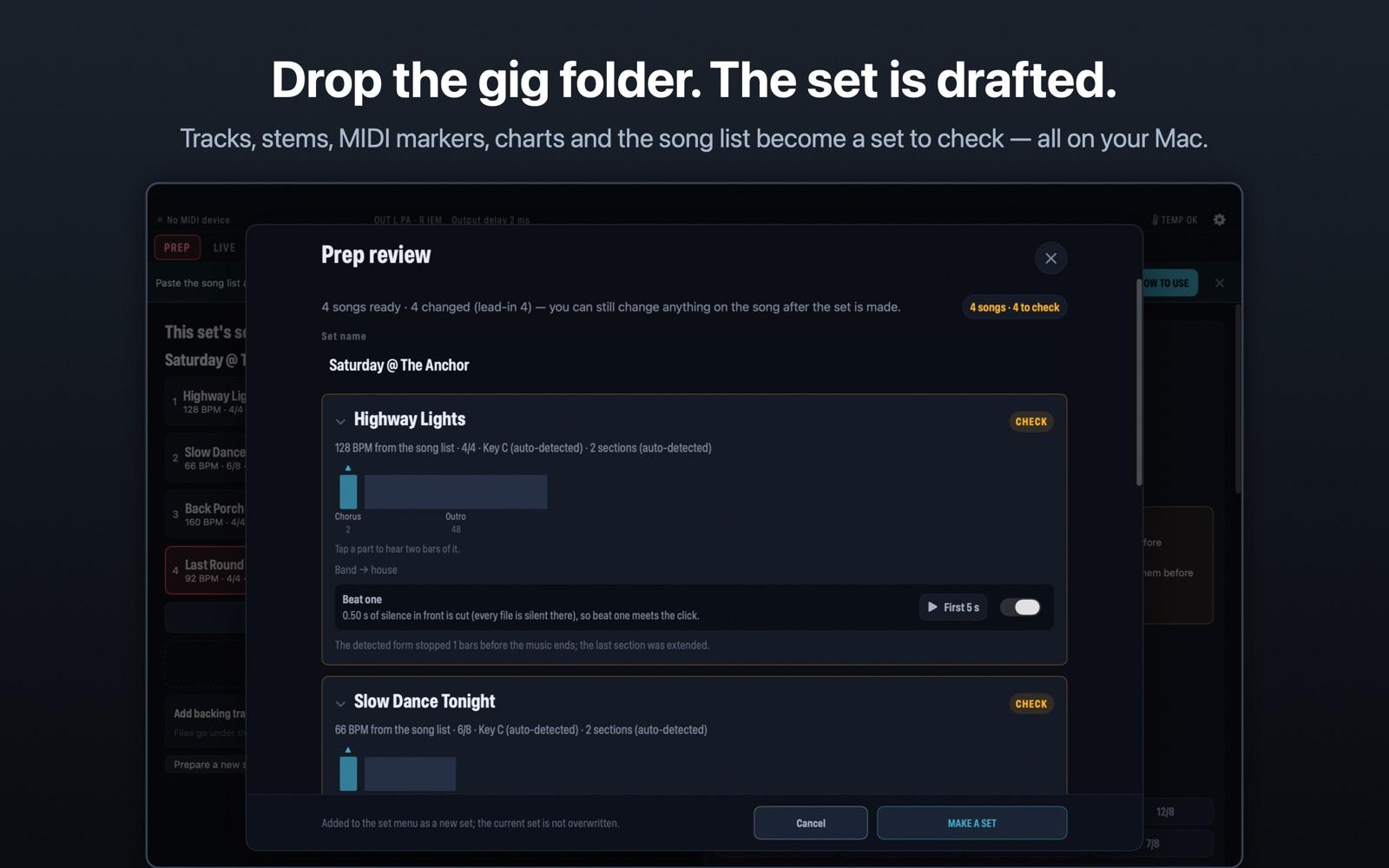
- 1On the Mac the whole gig is prepared in one place — no DAW, no other app. In Prep, paste the leader's list under Paste the song list and drop the gig folder under Add backing tracks or files: tracks or stems (click, guide, drums, bass, keys…), MIDI files with markers and chord charts. Either one alone is enough. Then press Prepare the set. A set with songs is open? Prepare a new set, under the song order, brings the two cards back.
- 2Each file finds its place: the click and guide go to your ears, the drums are muted — you play them — and the rest goes to the house. Markers and charts give the sections, the chart or list gives the key and tempo, and anything not written down is detected from the audio. Tempo changes in a click track or a MIDI file become the song's tempo map; a click track's its odd meter and grouping are read too.
- 3Split a song elsewhere? Folders from Logic Pro's Stem Splitter, Demucs, Ultimate Vocal Remover, Moises or LALAL are read as they come; a file called 'no drums' or 'Minus Drums' is the band.
- 4One mixed file only? Turn on Reduce drums in the gear: a separation model that runs on this Mac takes the drums out of it. Good for practice and backup; for the show, real multitracks are still the sure thing. Listen on the review before you make the set.
- 5The review shows every song before anything changes. CHECK marks what needs a look; LOOKS RIGHT confirms it. Tap a part of the section bar to hear two bars of it. Beat one shows how the start was lined up with the click, and each track says where it goes — ears, house or muted.
- 6MAKE A SET adds it to the set menu as a new set and loads it; the set you had stays as it was. Everything is still a draft you can change on the song. Right after, Send this set to your iPhone… appears under the song order: AirDrop the file, or send it by Mail or a chat app, and on the phone choose Add as a new set. Later, MAKE A BACKUP… on the song makes a file of the whole show to send the same way.
- 7AI help is optional and off until you allow it: open Options: AI help, apply suggestions under Prepare the set and tap Allow AI help. It sends the song list, file names and measured numbers to Google Gemini — audio stays on the device. Nothing is sent while a song plays or under LIVE LOCK. Left off, prep works by its own rules.
One-click prep on the iPhone and iPad
- 1In Prep, paste the leader's list under Paste the song list. Under Add backing tracks or files, tap CHOOSE FOLDER… and pick the gig folder in Files — the tracks or stems, a chart — or FILES… for single files. On the iPad you can drag them in from Files too. Either one alone is enough. Then tap Prepare the set.
- 2Each song is read for its tempo, meter, sections and beat one; a form written in the list stays as written. The review shows every song before anything changes; MAKE A SET adds a new set and loads it.
- 3AI help is optional and off until you allow it: open Options: AI help, apply suggestions under Prepare the set and tap Allow AI help. It sends the song list, file names and measured numbers to Google Gemini — audio stays on the device. Nothing is sent while a song plays or under LIVE LOCK. Left off, prep works by its own rules.
- 4Drum reduction runs on the Mac only for now; here a mixed file is used as it is.
Rehearsing slower
- 1In Prep, Rehearsal tempo 50–150% (steps of 1 and 5): the backing track, the click and the sections move together, at the same pitch. LIVE LOCK puts it back to 100% for the show.
Taking the show somewhere else
- 1In Prep, MAKE A BACKUP… makes one file with every song, kit and sound.
- 2AirDrop it to the other phone, the iPad or the Mac and open it in PadBrain. Everything is there — a set prepared on the Mac arrives with its tracks; choose Add as a new set, Add to this set or Replace this set.