PadBrain · guide · 5/6
Every button
Every button, screen by screen. The same as “Every button” in the app’s own guide.
The steps below are the same words as the app’s own guide. In the app: the gear (Rig) → “How to use PadBrain”.
Top bar
What the rig is doing right now. Nothing here needs a tap except the gear.
- MIDI device
- The pads or module plugged in. 'No MIDI device' means nothing is connected yet.
- Output
- Where the sound goes. Orange — on a Mac or iPad it reads 'Click goes to the PA too' — means the click is going to the audience; tap it to change the output. L PA · R IEM is the splitter‑cable mode. Not orange is not a promise — before a show, listen to the L plug once (Check at home).
- ms
- How long the app takes to get sound out (the output side only). Around 10 is normal. The time a pad takes inside the module is not in here, so the first time you plug in, hit and listen too. Bluetooth shows hundreds — do not play on it.
- Thermometer and battery
- Orange when the phone is hot or the battery is low. Plug in.
- Warning chip
- Appears only when something is in the way of the show — a missing file, a muted output, the click about to go to the room, a tempo still to check. Tap it to see what, and often to fix it.
- Gear
- The rig: output, count-in, click, pad feel, soundcheck, foot switch, host program, the rig drawings. And this guide.
Live
The stage screen. Big buttons, nothing to set.
- Song count (top)
- Tap it for the whole set. While a song plays the list is view only; stopped, tap a song to move there.
- Song, SECTION, BPM, BAR
- Which song, which part of it, how fast, which bar of the section. The four cells blink on the beat.
- Now · Next
- On a wide screen, the board in the middle: the section you are in and the bars left in it, and the section coming next with the bars until it — the beats, in the last bar. COUNT IN shows during the count-in. The nine pads sit in one row under it.
- Pads
- Nine sounds for this song. Tap on screen or hit the real pad. A lit pad is playing.
- ◂ SECTION · SECTION ▸
- Jump to the previous or next section. The jump waits for the bar line.
- HOLD
- Repeat this section until pressed again. For 'one more time'.
- SYNC · CLICK OUT · CLICK BACK
- Click-only song: tap on the band's ONE and the click moves to it; UNDO for ten seconds. With a backing track: CLICK OUT drops the click until the next bar line, and CLICK BACK brings it right back on it.
- BPM (stopped)
- Tap it for one bar of the click in your ears, with the ears on their own side.
- Section chips · VOICES ONLY
- The song's sections by name: tap one to go there on the next bar line; the one you are in starts again. Two with the same name are numbered. VOICES ONLY fades the band and keeps the click.
- NEXT ▸ beside the section
- The section coming next and the bars left — the beats, in the last bar. A move you asked for shows as → and its name.
- AMBIENT
- A soft pad in the song's key for between songs. Tap: fade in or out. Hold: key, level, follow each song's key.
- NEXT line
- The song after this one. SEGUE means it will start by itself when this one ends.
- PREV · NEXT
- The song before or after, from its top. While playing, the new one starts at once.
- TOP
- This song from the top. While playing it lands on the bar line.
- PLAY · STOP
- Start with the count-in, or stop.
- PANIC
- Hold it: everything stops at once. Tap it and nothing happens, on purpose.
- LIVE LOCK
- Tap to lock, hold to unlock. Locked: nothing can be edited, added or reordered; while playing, PREV and TOP need a hold. Pads, pedal, PLAY and NEXT still work. It stays on if the app restarts.
Prep — the set
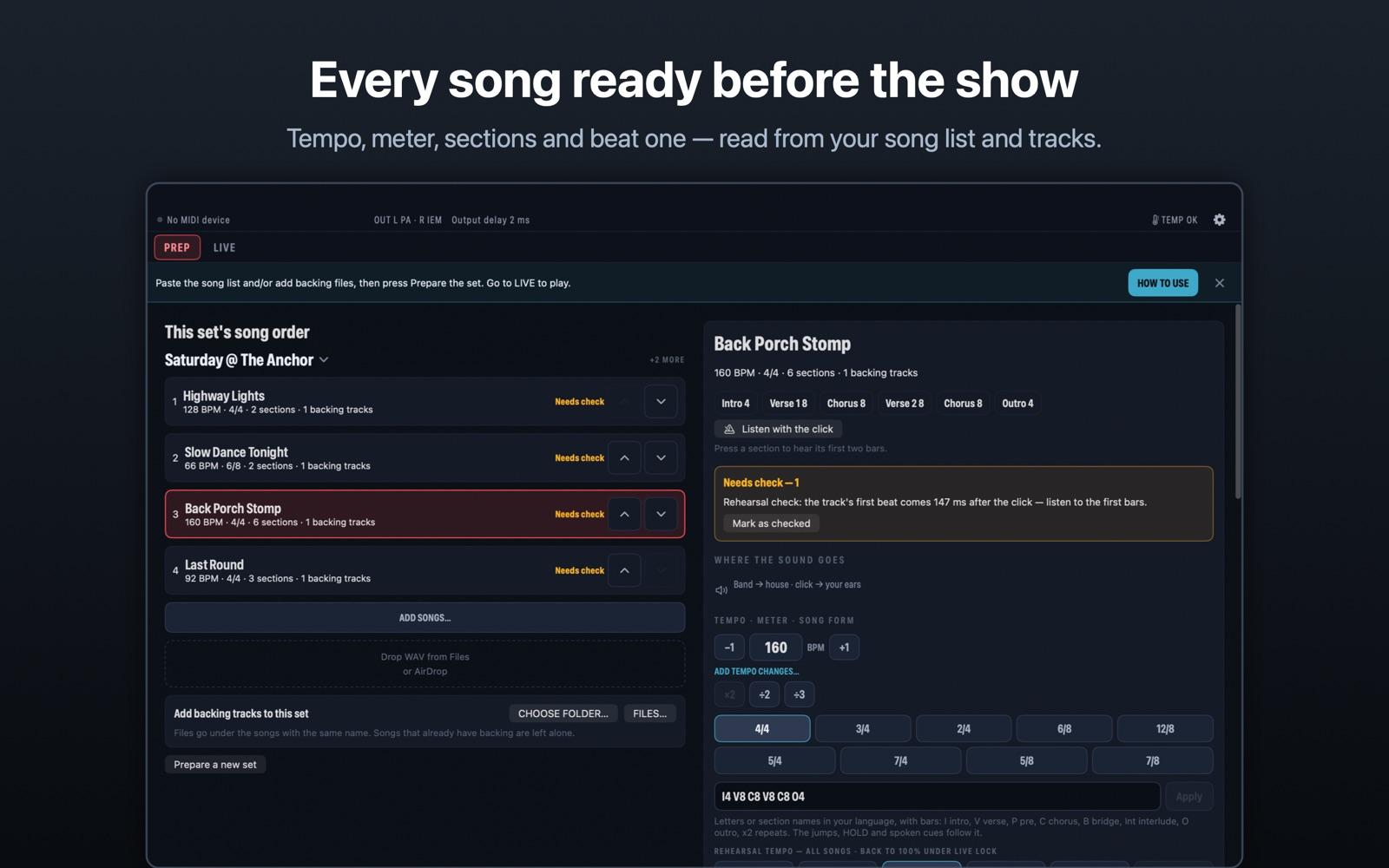
On a wide screen the set's song order is on the left and the picked song's detail on the right; on a narrow one, the same from top to bottom. The pads are behind Edit kit.
- The set
- Tap a song to work on its detail. Press and hold and drag to move it, or use the arrows. The set plays in this order.
- Paste the song list · Add backing tracks or files · Prepare the set
- Where a new set starts; Prepare a new set under the song order opens it again. The leader's list becomes a set: titles, keys, tempos, meters, song forms. Lines like Sermon or Prayer are left out. Files are matched to the songs by name, in any order. Nothing changes until you press MAKE A SET on the review.
- ADD SONGS…
- Pick backing tracks or a folder. A file named like a song without a track goes onto it; the rest become new songs, tempo and sections found by listening (a draft to check).
- Add backing tracks to this set · Attach backing
- For a set that already has its songs: CHOOSE FOLDER…, FILES… or a drop, and each file goes under the song with the same name. Songs that already have backing are left alone; no song is added. Attach backing, on the row of a song without one, picks files for that song.
- Needs check · Fixed · No issues
- What one-click prep left on each song. Needs check: the song's detail lists what to look at; Mark as checked turns it into No issues. Fixed: prep adjusted something by itself. No issues: nothing to look at.
- Sections · Listen with the click
- In the song's detail, press a section to hear its first two bars of the backing track. Listen with the click plays the song's start with a click over it, so you hear whether beat one lines up. Sections guessed from the audio say so — check them before relying on the section cues. Only with a backing track, stopped and with LIVE LOCK off.
- Tempo · meter · song form
- Tap the BPM to type it, or −1 +1 ×2 ÷2 ÷3. The meter: 4/4, 3/4, 6/8, and the odd meters 5/4, 7/4, 5/8, 7/8 with their grouping (2+2+3…). The song form as the leader writes it — I4 V8 C8 B8 C8 O4. A tempo map, when the song has one, is listed under the tempo; EDIT TEMPO MAP… changes it bar by bar.
- Rehearsal tempo
- 50–150% for every song, in steps of 1 and 5, the tracks stretched at pitch. Shown in orange on Live; back to 100% under LIVE LOCK.
- Tracks' key · −1 · +1
- Moves the song's backing tracks a semitone at a time, down to −6 or up to +6, to the leader's key. The click stays. Only for a song with a backing track, stopped and with LIVE LOCK off.
- Pad tone for this song
- FOLLOW THE RIG keeps the Pad tone set in the gear; or choose AS LOADED, WORSHIP, ROCK or DRY STUDIO for this song alone. Not under LIVE LOCK.
- Backing tracks · ADD TRACK… · REPLACE… · REMOVE
- The song's own tracks. Click is always there. A track plays as it is, so it must already be at the song's BPM.
- Click in file · None · File L · File R
- For a split track — a file with the click on one side and the band on the other, the way track vendors and SPD users make them. Pick the click's side: it goes to your ears only, the other side to the house, and the app's own click keeps quiet for that song (the count-in is still the app's). When you add such a file the app usually hears it and sets this for you, and says so.
- ANALYZE · APPLY
- Listen to the track again for its tempo and sections, and take what it found.
- At the end · STOP · INTO NEXT
- What happens when the song ends: wait for you, or run straight into the next song.
- Section hits
- A pad that fires by itself on a section's first beat — a crash on the chorus. Soft, Medium or Hard.
Prep — Edit kit
Each song has a kit: nine pads. Several songs can share one. Edit kit, at the bottom of the song's detail, opens these controls; Done closes them.
- Pad sound on · off
- Whether tapping a pad here plays it. Off while you set up in a quiet room.
- LOAD FILE… · FROM FILES · CLEAR
- Put a sound on the pad from the Files app, from a file already in the app, or take it off. WAV, AIFF, MP3, M4A, CAF.
- Play mode
- One-shot plays once. Loop repeats until hit again. Gate plays while held. Toggle starts and stops.
- Gain
- How loud this pad is.
- MIDI LEARN · HIT A PAD…
- Tie this screen pad to a real pad: tap, then hit the real one once.
- Kit menu
- Add samples to empty pads… fills the empty pads with several files at once. Match levels makes them equally loud. Both can be undone.
Prep — files
- MAKE A BACKUP… · OPEN A BACKUP…
- The whole night in one file — songs, kits, sounds. Make one to keep or move it, open one to bring a night in.
- Send this set to your iPhone…
- Under the song order, right after one-click prep makes a set. It packs the set and opens the share menu: AirDrop, Mail or a chat app. On the phone, open the file in PadBrain and choose Add as a new set.
Rig (the gear)
- Output · SAME BOTH SIDES · L PA · R IEM
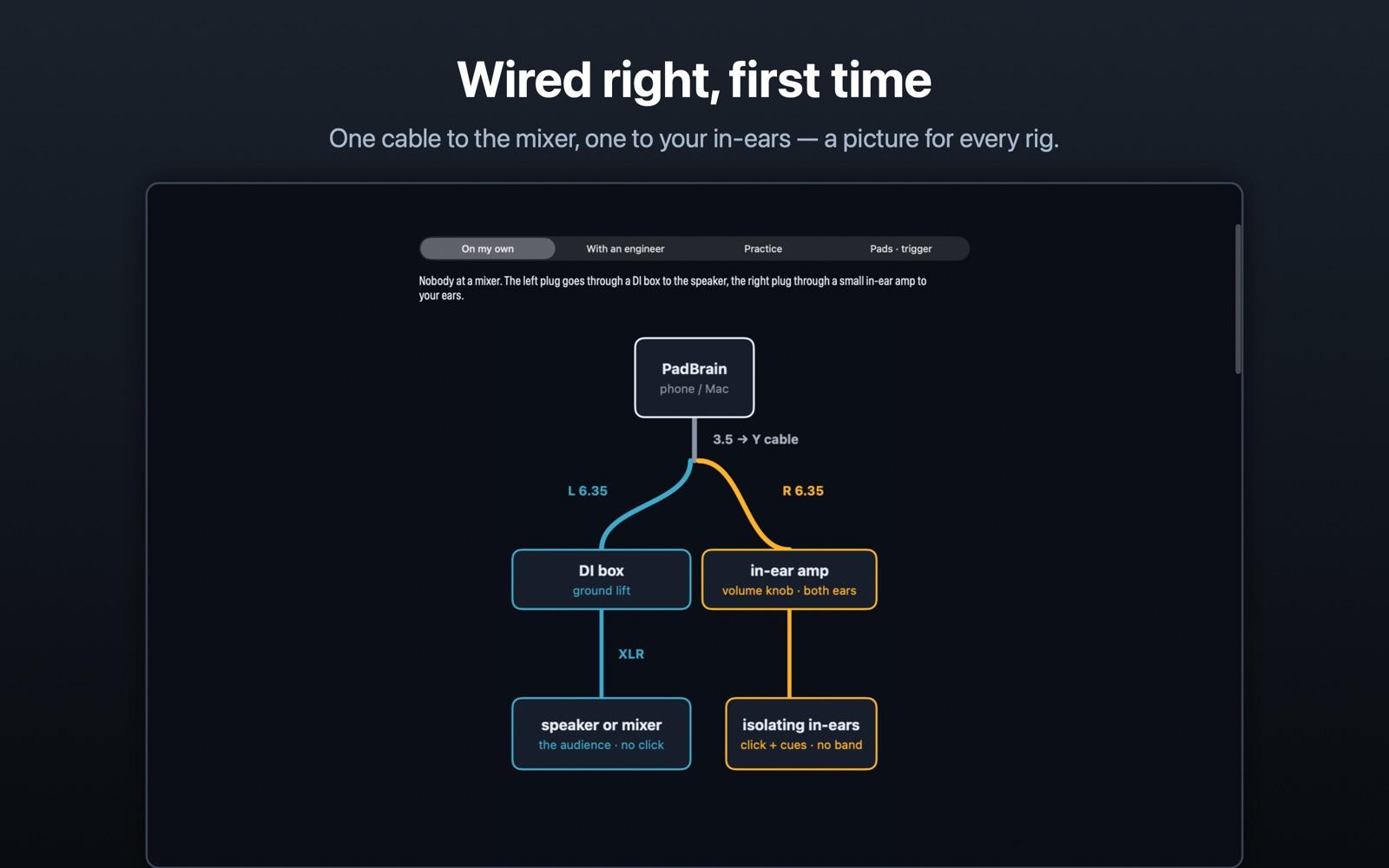
- SAME BOTH SIDES: everything on both sides — earphones, practice. L PA · R IEM: left is the backing track and the pads for the PA, right is the click and cues for your in-ears. For the Y-cable.
- Countdown into sections · Spoken cues and counts
- A spoken 4·3·2·1 on the bar before each section (off at first). The language of the spoken section names and counts — the app's (Korean, Spanish, Portuguese and French have their own; other languages hear English), one you choose, or off.
- Count-in · NONE · 1 BAR · 2 BARS
- How many bars of click before the song starts. Your ears only.
- Click · PITCHED · WOOD
- The click's sound and how loud. WOOD cuts through a loud stage.
- Band in ears · NONE · A LITTLE · HALF
- Some of the house mix — backing track and pads — under the click in your ears. For isolating in‑ears on your own. Only shown when the ears are their own channels.
- Pad feel · LINEAR · DYNAMIC · EASY · FIXED
- How hard you must hit for loud. EASY is loud with little force; FIXED is the same every hit.
- Foot switch · LEARN
- Give a pedal a job: play, next song, next section, hold, panic… Tap LEARN, step on it. A page-turner's keys are set already.
- ×2
- The job happens on two quick presses, so one stomp is never a wrong song.
- Host program · AUTO · LEARN
- A track player or controller that sends program numbers can pick the song. AUTO follows the set order; LEARN takes the number the player sends.
Getting files onto the phone
Nothing to install. Every route gets you to the same place.
- On a Mac
- The Mac is the easy way: in Prep, drop the gig folder under Add backing tracks or files and press Prepare the set, or link the band's folder (Prep → LINK A FOLDER…). The set and the samples live in Documents, in the open. Sending to the phone: Send this set to your iPhone… right after one-click prep, MAKE A BACKUP… and AirDrop it at any time, or PUT SHOW IN FOLDER.
- From Messages, a chat app or email
- Tap the file, tap Share, tap PadBrain. A short WAV goes onto an empty pad; anything else becomes a song.
- From a Windows PC
- Send the file to yourself in the chat app on the PC, then on the phone: tap, Share, PadBrain.
- From the Files app
- iCloud Drive, Dropbox. Anything the Files app shows opens with LOAD FILE… and ADD SONGS…. If a drive is missing from the list: in the picker, Browse → ⋯ at the top right → Edit, and switch that drive on. Google Drive is a case of its own, below.
- A linked folder — iCloud Drive
- Put the band's folder in iCloud Drive (or Dropbox). Prep → LINK A FOLDER… once; the Open button is live there. Each set keeps its own folder — the church set's, the band set's. After that: new files → IMPORT, and PUT SHOW IN FOLDER sends the whole show to everyone with the same folder. The one way that needs no second step.
- Google Drive
- Google Drive's Files add-on cannot hand over a folder, and its downloads break off ('Content unavailable'). Two ways that work: in the Drive app, ⋮ → Share & export → Send a copy → PadBrain, one file at a time; or mark the files Available offline in the Drive app first, then ADD SONGS… and pick them. If PadBrain is missing from the share sheet, scroll the app row to More.