PadBrain · guide · 2/6
Splitting the sound and wiring
The one thing that matters most on stage: the click (the beat you hear) reaches only you, never the audience. See how one headphone jack splits left to the house and right to your ears, and what to check before the show.
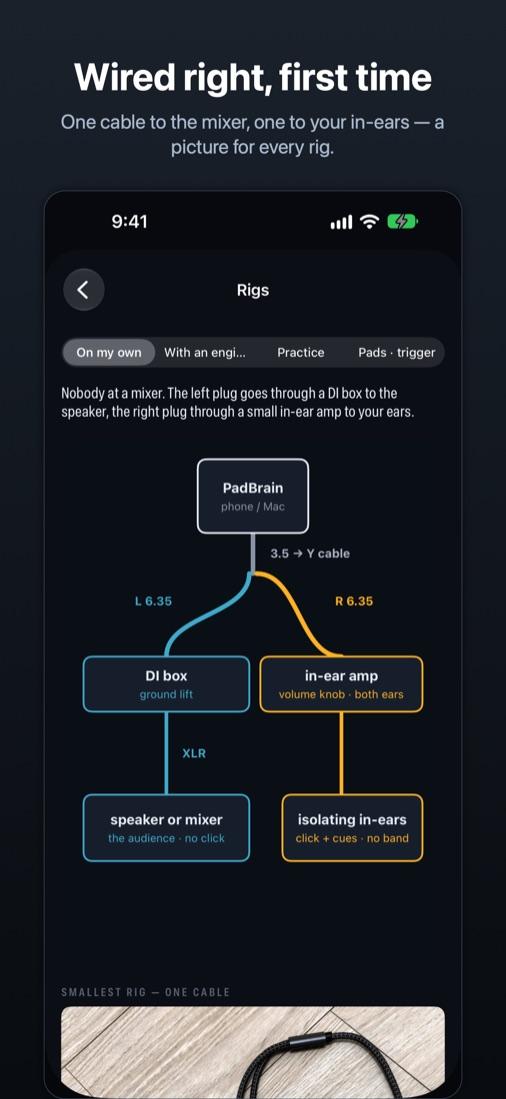
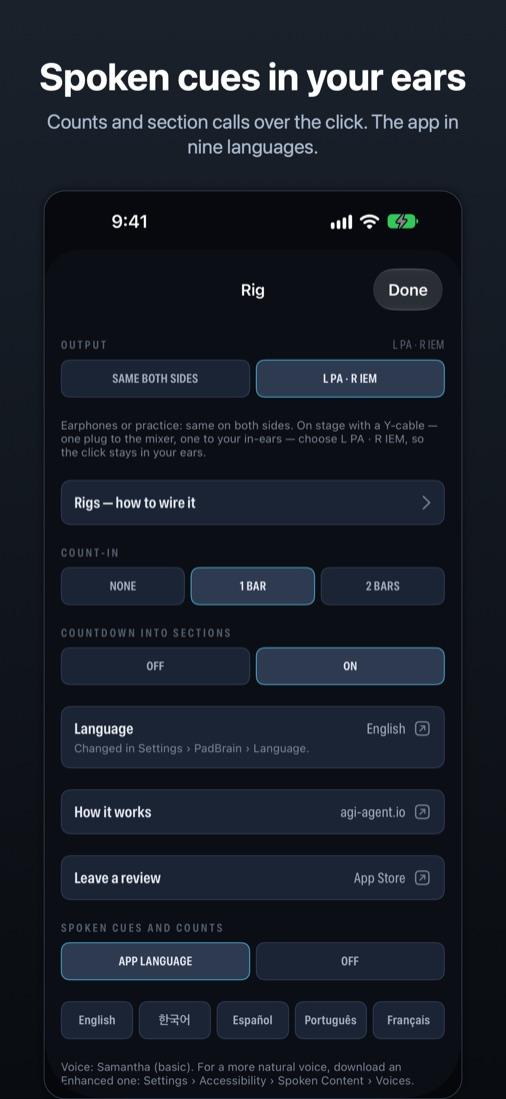
The steps below are the same words as the app’s own guide. In the app: the gear (Rig) → “How to use PadBrain”.
Plugging in
- 1Pads or a drum module: USB into the phone. The top bar names it when it is connected.
- 2Earphones go into the phone directly or into the audio interface. Not Bluetooth: it is 0.1–0.3 s late, half a beat in a fast song.
- 3Cheapest full rig: a splitter cable on the headphone jack — one 3.5 stereo plug into two 6.35 mono plugs marked L and R. Left goes to the PA, right to your in-ears. Set L PA · R IEM in the gear.
- 4A splitter with two stereo sockets also works, but both sockets carry music and click: the speaker side must go into L/MONO only, with a mono plug.
- 5A powered speaker or a mixer with L/MONO and R inputs: the L plug into L/MONO only. Using both inputs puts the click in the room.
- 6In-ears through a drum module's AUX or mix input: many modules also send that input to their main output. If the module's main output feeds the speaker, the audience hears the click — stand in front of the speaker once before the show.
Before the show, in Prep
- 1Drag the songs into tonight's order.
- 2For each song choose what happens at the end: STOP waits for you, INTO NEXT runs straight into the next song on the beat. The link under the two buttons sets every song at once.
- 3Give the pads the sounds the song needs: tap Edit kit at the bottom of the song's detail, tap a pad, LOAD FILE…, pick the sound. Tap a pad to hear it.
- 4Open the gear at the top right. With a Y-cable choose L PA · R IEM — the pre-show check warns you when the click would go to the room. Then Soundcheck: left and right, so you know which plug carries what.
- 5In the same place: how loud the spoken cues sit against the click, and an in-ear ceiling that keeps your side from getting too loud. The voice speaking the cues is named there; a downloaded Enhanced voice sounds far less like a machine.
- 6Worship team? The sample worship set plays the Worship kit: softer, more room, with cross-stick, ride, ride bell and floor tom.
- 7The silence after a ballad: in the gear, 'Pads while stopped' can ignore soft MIDI hits, and 'Screen pads lock after a stop' locks the on-screen pads a few seconds after a stop — one tap unlocks them. Both off until you choose.
- 8No warning chip in the top bar means you are ready.
Rig (the gear)
- Output · SAME BOTH SIDES · L PA · R IEM
- SAME BOTH SIDES: everything on both sides — earphones, practice. L PA · R IEM: left is the backing track and the pads for the PA, right is the click and cues for your in-ears. For the Y-cable.
- Countdown into sections · Spoken cues and counts
- A spoken 4·3·2·1 on the bar before each section (off at first). The language of the spoken section names and counts — the app's (Korean, Spanish, Portuguese and French have their own; other languages hear English), one you choose, or off.
- Count-in · NONE · 1 BAR · 2 BARS
- How many bars of click before the song starts. Your ears only.
- Click · PITCHED · WOOD
- The click's sound and how loud. WOOD cuts through a loud stage.
- Band in ears · NONE · A LITTLE · HALF
- Some of the house mix — backing track and pads — under the click in your ears. For isolating in‑ears on your own. Only shown when the ears are their own channels.
- Pad feel · LINEAR · DYNAMIC · EASY · FIXED
- How hard you must hit for loud. EASY is loud with little force; FIXED is the same every hit.
- Foot switch · LEARN
- Give a pedal a job: play, next song, next section, hold, panic… Tap LEARN, step on it. A page-turner's keys are set already.
- ×2
- The job happens on two quick presses, so one stomp is never a wrong song.
- Host program · AUTO · LEARN
- A track player or controller that sends program numbers can pick the song. AUTO follows the set order; LEARN takes the number the player sends.