PadBrain · guide · 1/6
Getting started
PadBrain plays pad sounds, backing tracks and the click together from one phone. First open the sample set and press PLAY. Then make your own set from the song list your leader sent.
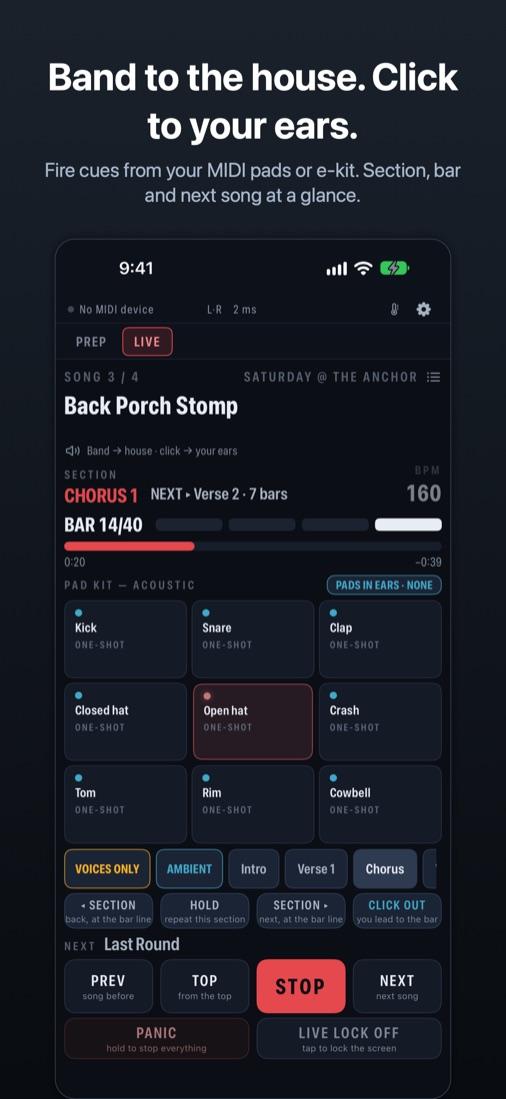
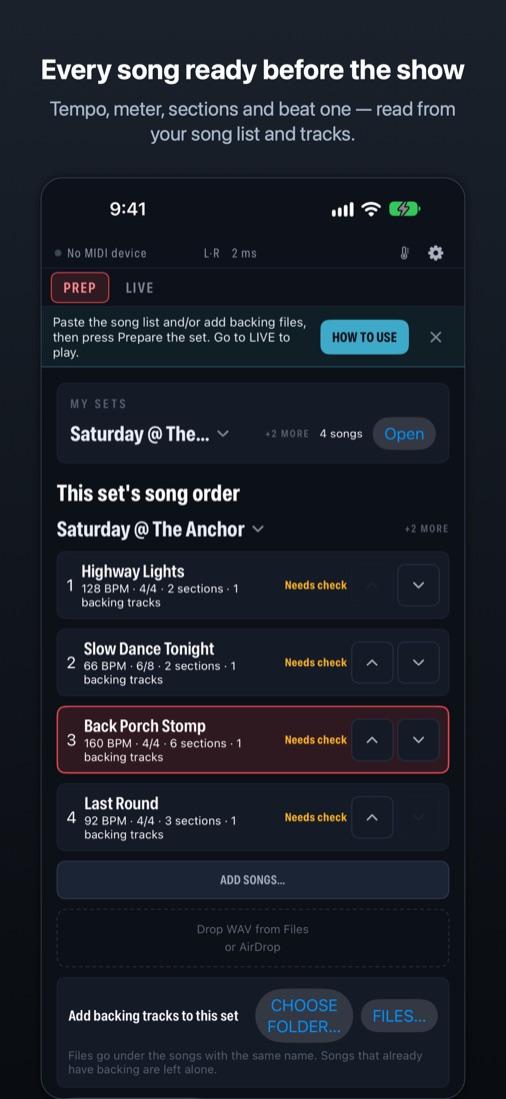
The steps below are the same words as the app’s own guide. In the app: the gear (Rig) → “How to use PadBrain”.
What this is
- 1A sampling pad and a multitrack player in one: the pad sounds, the backing track and the click from one phone, iPad or Mac. One-click prep turns a song list and a gig folder into a ready set on any of them. On stage the track moves by song and by section, and the click stays in your ears.
Starting from a song list
- 1Fastest start — a conti. In Prep, paste the leader's list from the chat under Paste the song list and press Prepare the set: titles, keys, tempos, meters and song forms (I4 V8 C8…) become a set. Look over the review and press MAKE A SET.
- 2No backing tracks needed: the click, the spoken section names and the pads are enough to play. A song with no tempo written starts at 120 — tap the BPM in Prep and type it.
- 3Have the tracks? ADD SONGS… with all the files at once: a file named like a song — 01_Way Maker_track.mp3 — goes onto that song by itself.
- 4Want to see it first? The sample set Sunday Worship (sample) is in the set menu: open it and press PLAY.
Getting the songs in
- 1Someone sends you the backing track in a chat. Tap the file, tap Share, tap PadBrain. The song is now last in the set.
- 2Or in Prep, tap ADD SONGS… and pick a folder: every track in it becomes a song, in name order.
- 3Best of all: keep the band's tracks in an iCloud Drive folder and link it once (Prep → LINK A FOLDER…). From then on it is new files → IMPORT, and PUT SHOW IN FOLDER sends the whole show back.
- 4The app listens to each track and sets its tempo and sections by itself, marked as a draft: look once in Prep and tap LOOKS RIGHT, or fix the BPM by typing it.
- 5A split track — click on one side, band on the other, the way track vendors sell them — works too. When the app detects which side the click is on, it tells you. No message, but the file has a click? The app couldn't tell: pick the click side on the track's row, or the click goes to the house.
- 6A song whose tempo changes plays right when one-click prep made its tempo map from a click track — the song's detail in Prep shows it on the Tempo map line. Added any other way, a song keeps one tempo until you put the changes in with ADD TEMPO CHANGES… there — then BAR and the jumps follow them too. A count-off or a late start in the file: one-click prep lines beat one up itself, and LINE UP BEAT ONE… under the song's Backing tracks does it for any song — no other editor needed.